
How to create a course using SleepPRO™
Courses
A course lets you help families you will never meet on a call, such as a newborn sleep course or a toddler bedtime program. Here is how to build one.
Step 1: create your course
- In the menu, go to Assets, then Courses.
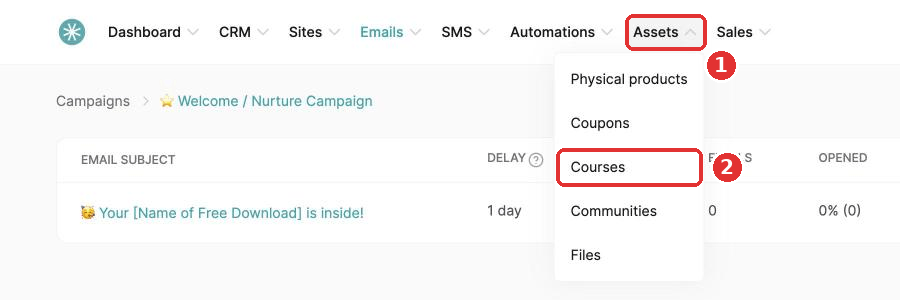
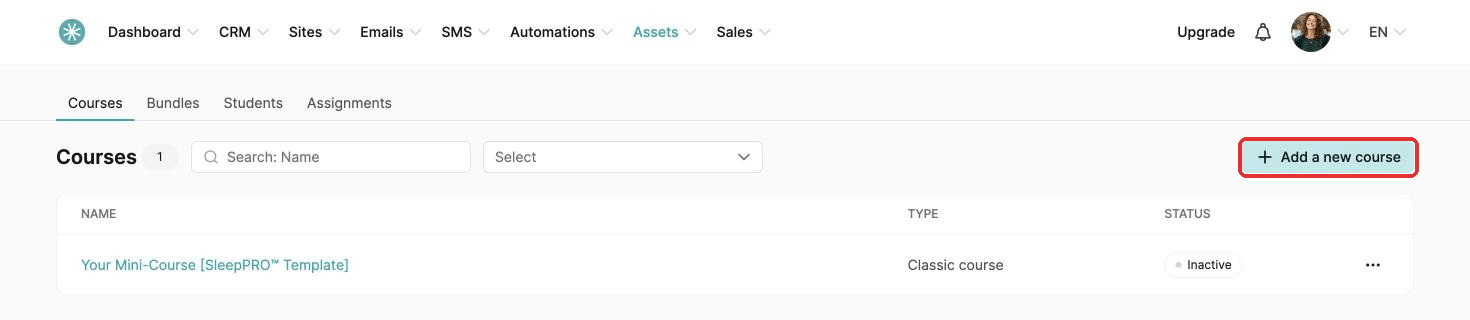
- Click Add a new course.
- Fill in the name, domain and URL path, and pick a theme.
- Scroll down and click Save.
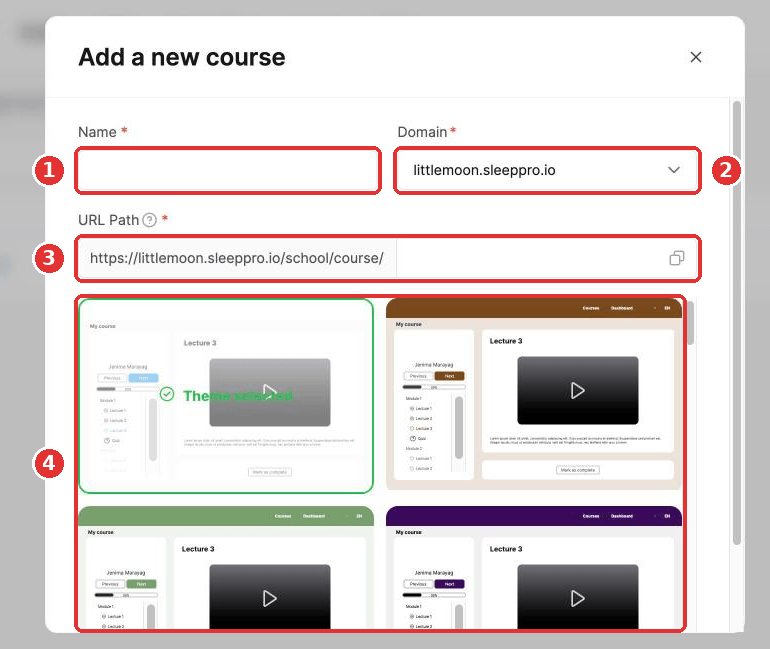
You can change these details later. See How to modify a course's information.
Step 2: add a module
Modules are the chapters of your course, for example Week 1: Building the bedtime routine.
- Open your course and click Add module at the bottom of the page.
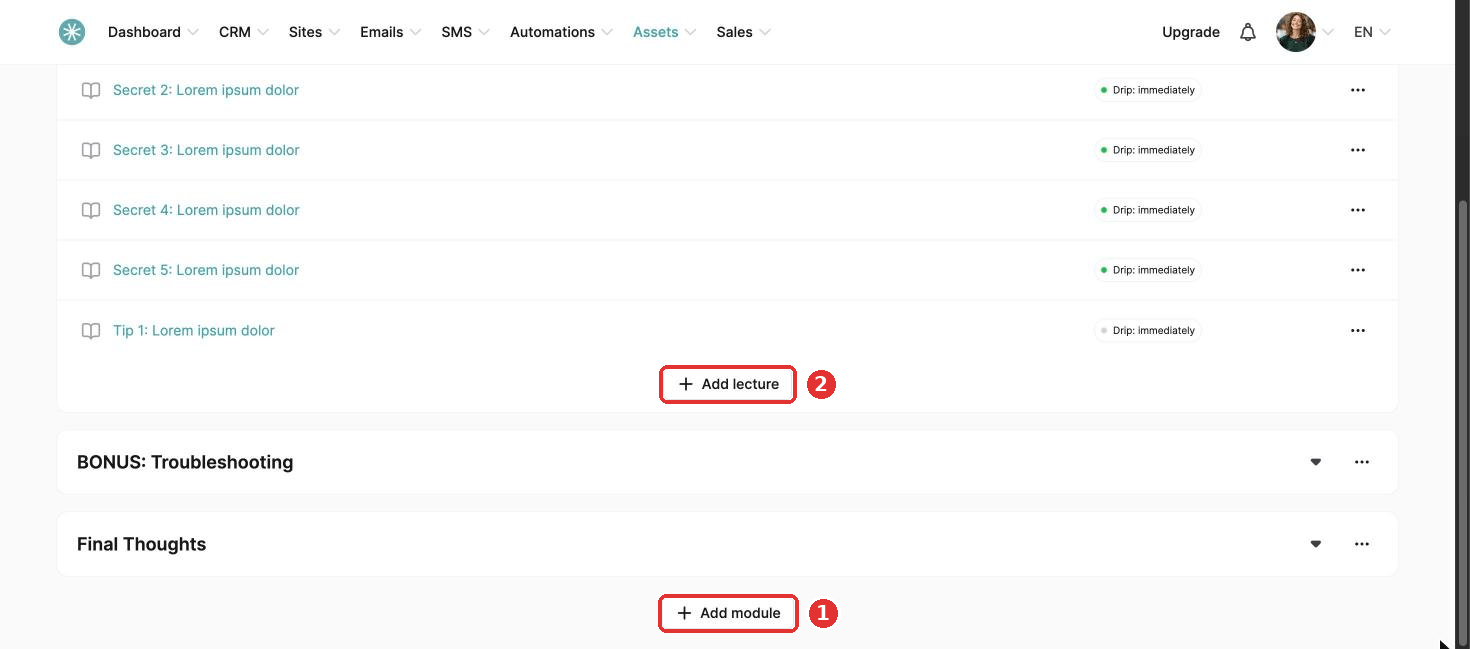
- Type a name and click Save.
Step 3: add lectures
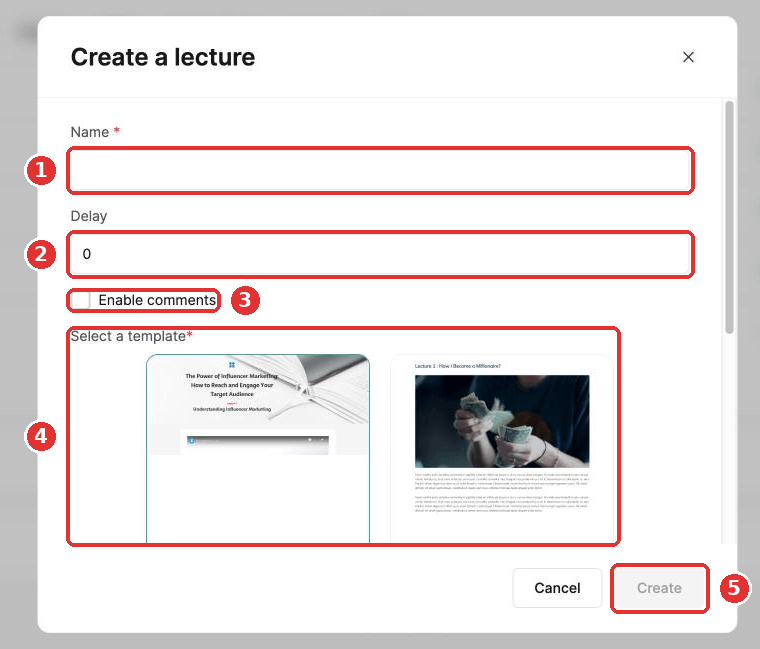
- Inside your module, click Add lecture (number 2 in the screenshot above).
- Enter the lecture name.
- Set the delay after the previous lecture. This controls when the lecture opens for students on drip access.
- Tick Enable comments if you want parents to comment on this lecture.
- Pick a page template and click Create.
Activate your modules and lectures once they are ready, otherwise students cannot see them. The same goes for the course itself. You can drag lectures between modules to reorder them.
The delay counts from the previous lecture, not from the start of the course. A delay of 7 days means the lecture opens 7 days after the student gets access to the lecture before it.
Step 4: duplicate or move content
Click the three dots next to a module or lecture:
- Duplicate: makes an exact copy in the same course. Duplicating a module copies all its lectures.
- Move: moves the module or lecture to another course. Pick the course from the dropdown.
You can only move content between courses of the same type, for example from one classic course to another.
Duplicated or moved content starts out inactive. Activate it so students can see it.
When you move content to another course, student progress, access rules and automations for this content are reset.
You cannot move or duplicate content while it is already being moved or duplicated.
The four access types
- Full access: students get every lecture straight away. Delays are ignored.
- Drip content: lectures open one by one, based on your delays.
- Partial access: students only get the modules you choose.
- Partial access with drip: students get the modules you choose, and the lectures inside them open based on your delays.
See How are the different course access types different? for more detail.
Did this answer your question?