
How to integrate PayPal with SleepPRO™
Payment gateways
Many parents like paying with PayPal. Here is how to connect it so they can pay for your sleep packages this way.
You will need a PayPal Business account. You can sign up for one, or switch a personal account to business, for free.
1. Connect PayPal
- Click your profile picture, then Settings.
- Click Payment gateways, then Connect next to PayPal.
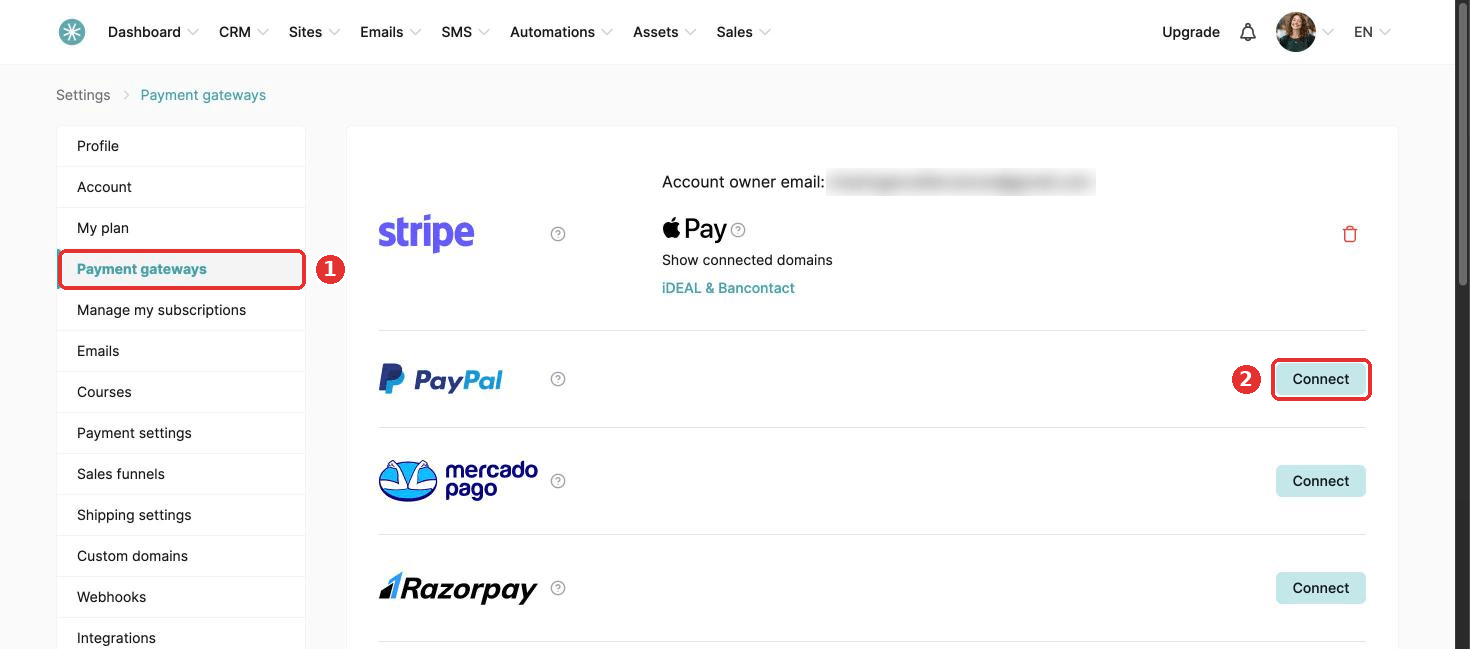
- A new tab opens. Log in to PayPal. With two-factor authentication on, enter the code PayPal sends you.
- Click Allow to let SleepPRO™ connect to your account.
- Click the button to return to SleepPRO™. After a few seconds, your PayPal Merchant ID shows. You are connected.
Every order form taking PayPal payments needs the Email, First name and Last name fields. Add any which are missing.
2. Turn on payment notifications (IPN)
Instant Payment Notifications tell SleepPRO™ whether each PayPal payment succeeded. You switch them on in PayPal.
- Log in to PayPal, click the profile icon, then Account settings.
- Scroll to Notifications and click Update next to Instant payment notification.
- Click Choose IPN settings.
- In Notification URL, enter PayPal IPN notification URL.
- Under IPN messages, choose Receive IPN messages (Enabled).
- Click Save. A confirmation shows notifications are on.
While PayPal is verifying your account, or if your account is restricted, you may see "PayPal keys are incorrect" or "Account is restricted". Contact PayPal support to lift the restriction.
3. Supported currencies
- Buyers: worldwide.
- Subscriptions: yes.
- Currencies (25): AUD, BRL, CAD, CHF, CNY, CZK, DKK, EUR, GBP, HKD, HUF, ILS, JPY, MXN, MYR, NOK, NZD, PHP, PLN, RUB, SEK, SGD, THB, TWD and USD.
- Merchant restrictions: none.
Did this answer your question?