
How to connect your domain to SleepPRO™
Custom domains
Your own domain, such as www.yoursleepbusiness.com, makes your business look professional and easy to remember. Here is how to connect it.
You will need a domain bought elsewhere, for example at GoDaddy or Namecheap.
A domain can only be used for one website. If your domain currently shows a website somewhere else, it stops working there once added to SleepPRO™.
This guide is for a root domain, such as www.yoursleepbusiness.com. For a subdomain, see Integrating your subdomain with SleepPRO™.
Step 1: add your domain in SleepPRO™
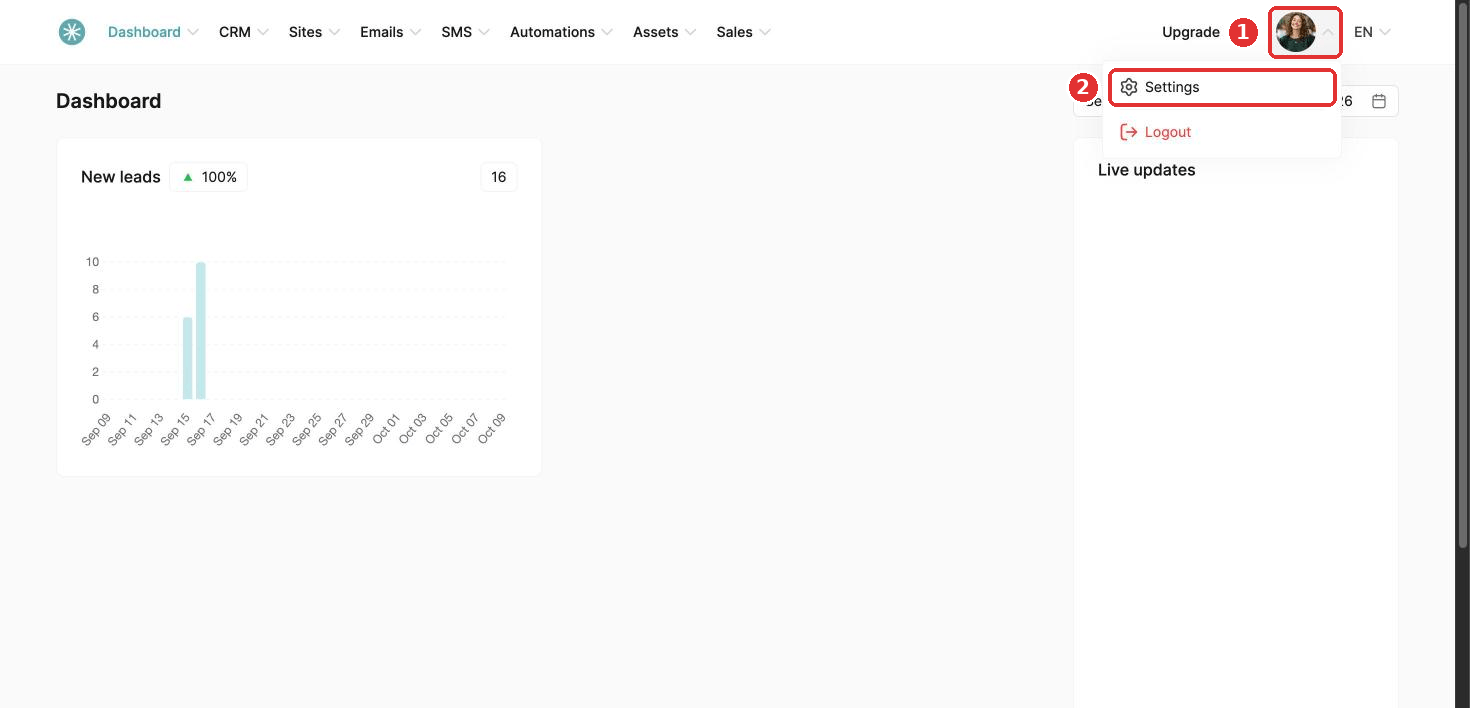
- Click your profile picture, then Settings.
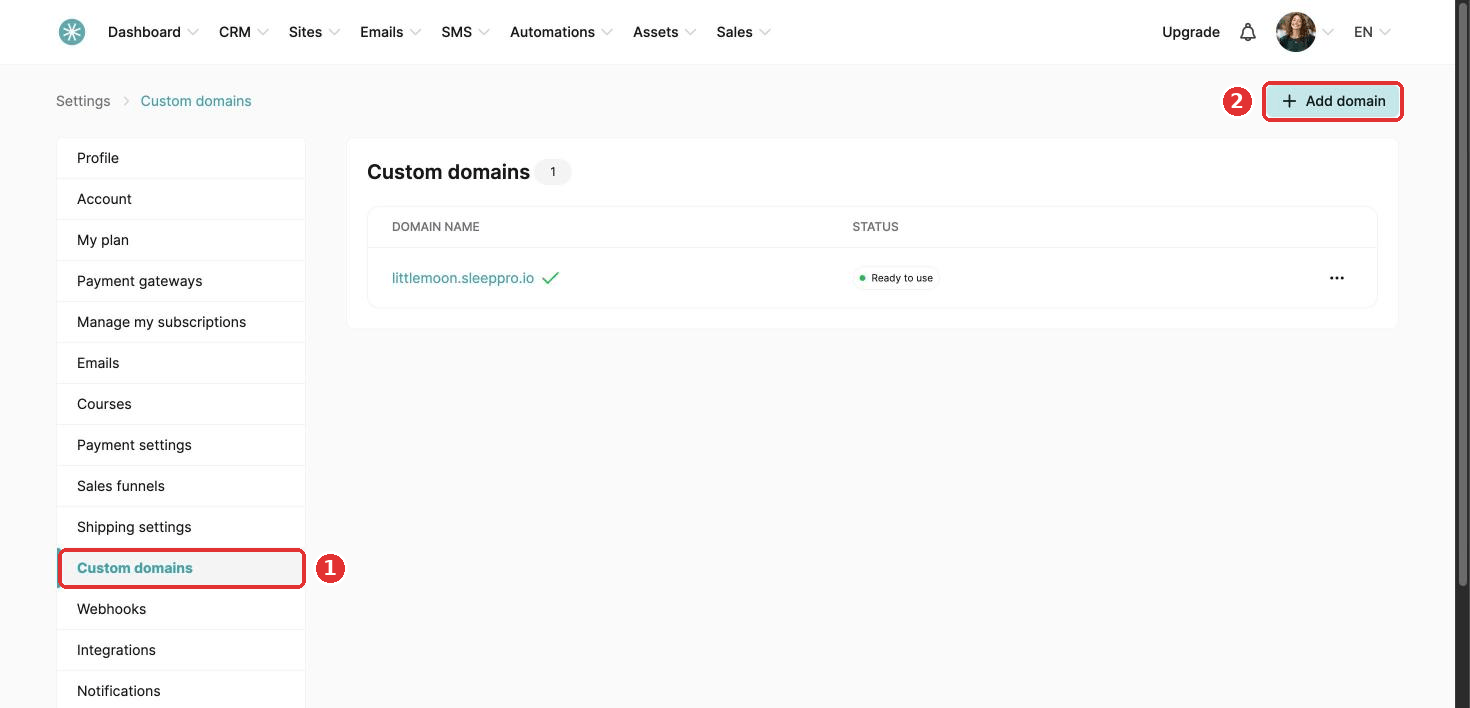
- Click Custom domains in the left menu, then click Add domain.
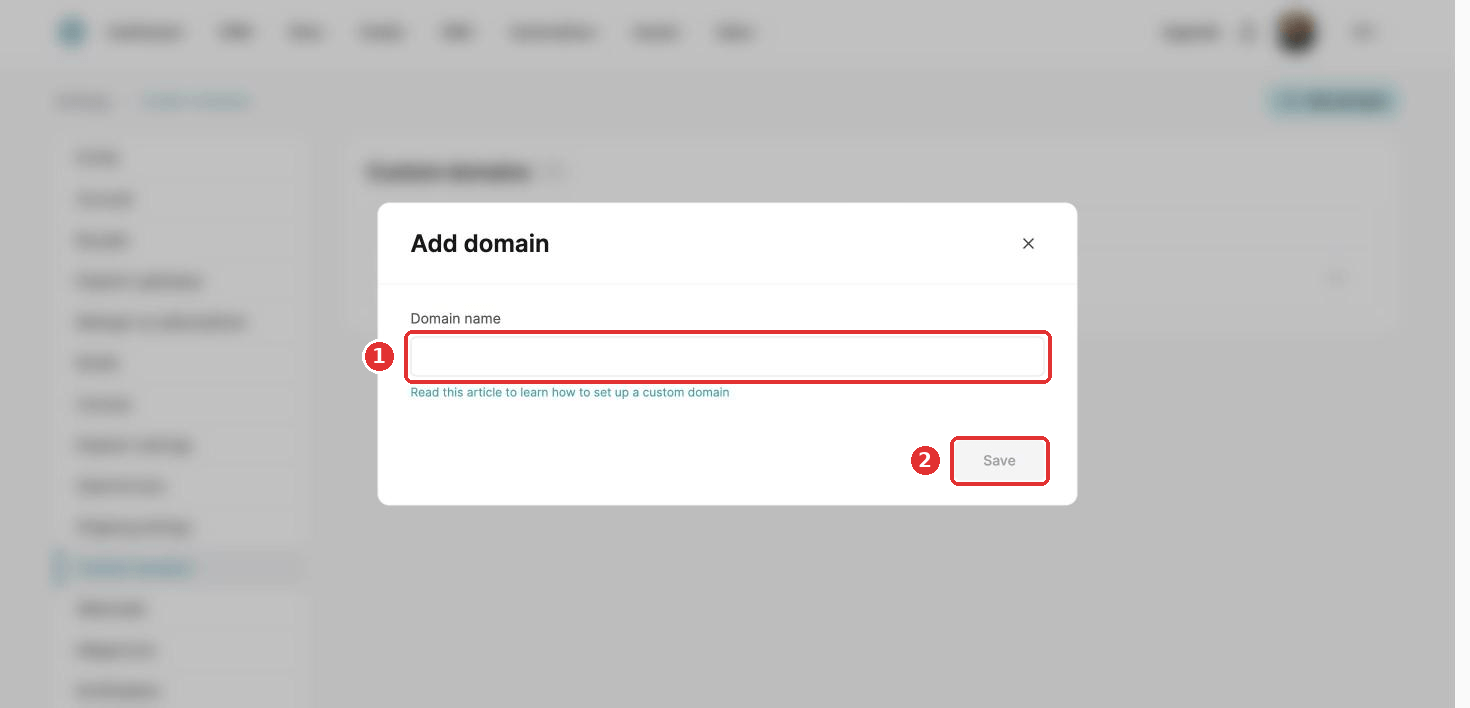
- Enter your domain starting with www, for example www.yoursleepbusiness.com, and click Save.
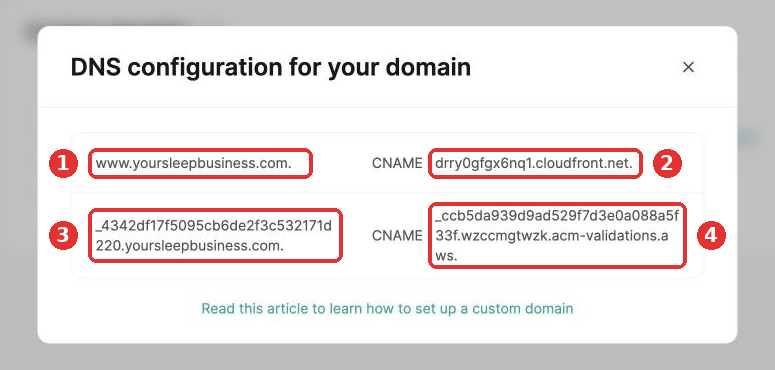
- A popup shows two CNAME records, made of four codes. You add these at your domain provider:
- First record: code 1 goes in the Name (or Host) field, code 2 in the Value (or Target) field.
- Second record: code 3 goes in the Name (or Host) field, code 4 in the Value (or Target) field.
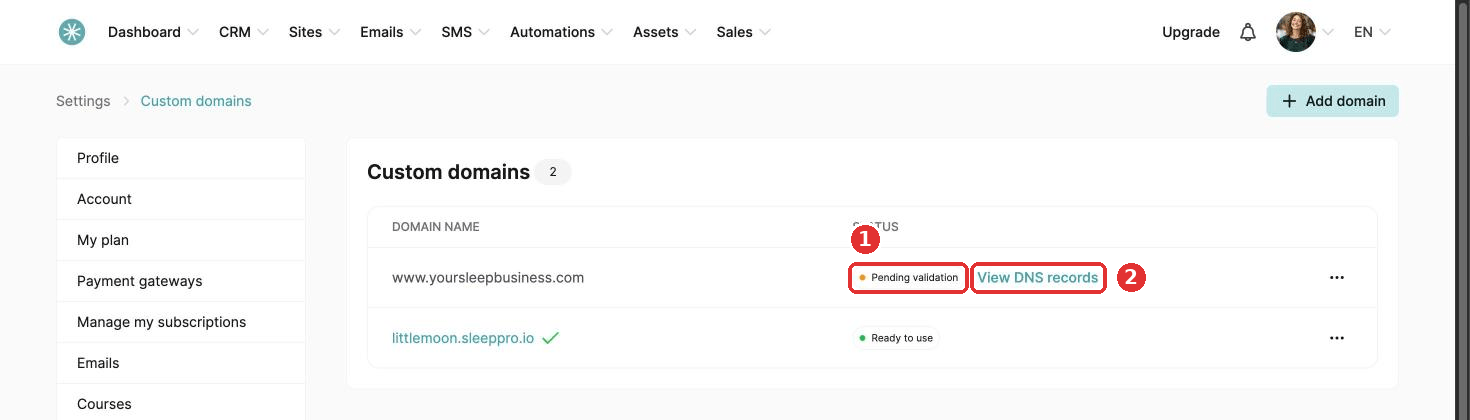
Closed the popup? Click View DNS records next to your domain to see your codes again. Once your provider has the records, the status changes from Pending validation to Ready to use.
Step 2: add the records at your domain provider
Step by step guides exist for GoDaddy, OVH, Cloudflare, Infomaniak, IONOS, Namecheap, Hostinger and LWS. See How to connect your GoDaddy domain to SleepPRO™ and the other provider guides in this category. For other providers, their support team can show you where to find your DNS settings.
In general:
- Open your DNS zone.
- Create two CNAME records with the values from SleepPRO™:
- First: Name (host) www, Target (value) the address ending in cloudfront.net.
- Second: Name (host) the long code starting with an underscore, Target (value) the address ending in acm-validations.aws.
- Check your records at dnschecker.org. Enter the full name of each record, including your domain. Everything should show green. If not, review your DNS settings.
Some providers, such as Hover, do not accept a full stop at the end of record values. If your domain keeps losing its Ready to use status, this may be why. Ask your provider.
DNS changes take 24 to 48 hours to spread fully.
If your provider will not save a record because of a conflict with another one, ask them what the existing record is for and whether it is safe to remove.
Step 3: send yoursleepbusiness.com to www.yoursleepbusiness.com
- On Hostinger: create an ALIAS record from the root to the same destination as your www CNAME record.
- On other providers: go to redirection or forwarding, click Add redirection, and redirect yoursleepbusiness.com to www.yoursleepbusiness.com.
Approval can take a few hours.
Most providers only forward http addresses, not https. For https forwarding, a provider with CNAME flattening (such as Cloudflare) or root-level CNAMEs (such as Namecheap) works best.
Once connected, set your homepage so visitors land on the right page. See How to define your domain's homepage.
Did this answer your question?